A new feature has been added to BBS Accounting to allow users to quickly copy and paste or drag and drop files from their computer into BBS Accounting to be attached to a Debtor Account, Creditor Account, Product, Service Equipment, Employee, and G/L Journal or any of the transactions linked to them that currently allows Notes and Attachments to be added. The quick attached files are added to a note in the usual notes and attachments screens that appear throughout the system.
The Quick Add Attachment icon looks like  and has been added on the screens listed below. Please note that the Quick Attach Files button has been added to many data entry screens (eg Sales Order/Quote Entry/Maintenance, Creditors Invoice Entry/Maintenance etc.) to enable users to attach source documentation at the time a transaction is being entered. For example, users may wish to attach a customer order email to a sales order as it is being entered, or the suppliers invoice PDF to the creditors invoice as it is being entered etc. The Quick Attach Files button will also be added to more screens in the future.
Debtor Accounts:
•Debtor Account Notes and Attachments
•Customer Masterfile Maintenance
•Sales Invoice/Credit Entry and Maintenance
•Debtors Posting – The file/attachment will be attached to the highlighted credit (eg cash receipt, credit note, credit journal etc) or if On/Account or Discount is selected, it will attach directly to the Customer. *** USEFUL FOR ATTACHING REMITTANCES WHILE APPLYING PAYMENTS ***
•Sales Order/Quote Enquiry/Maintenance
•Web Order Enquiry/Maintenance
Creditor Accounts:
•Creditor Account Notes and Attachments
•Vendor Masterfile Maintenance
•Creditors Invoice Entry/Maintenance *** USEFUL FOR ATTACHING CREDITORS INVOICES WHILE ENTERING THEM ***
•Purchase Order Entry/Maintenance
•Stock Receipting *** USEFUL FOR ATTACHING SUPPLIER INVOICES OR DELIVERY DOCKETS WHILE RECEIPTING STOCK ***
Products:
•Product Notes and Attachments
•Product Masterfile Maintenance
•BOM Build Order Entry/Maintenance
Service Equipment:
•Service Equipment Notes and Attachments
•Equipment Masterfile Maintenance
•Service Job Entry/Maintenance
Employees:
•Employee Notes and Attachments
•Employee Masterfile Maintenance
Contact Relationship Manager:
•CRM – Notes / Attachments / Tasks Screen
•CRM – Task Notes / Attachments Screen
General Ledger:
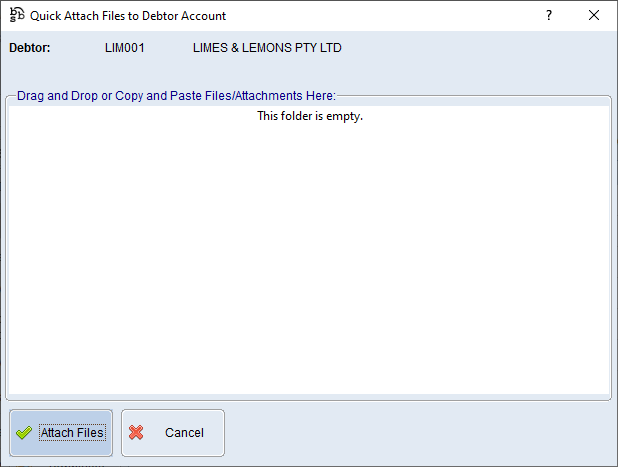
When the Quick Attach Files button is clicked, a window similar to the one below will appear.
BBS Accounting:
BBSCloud:
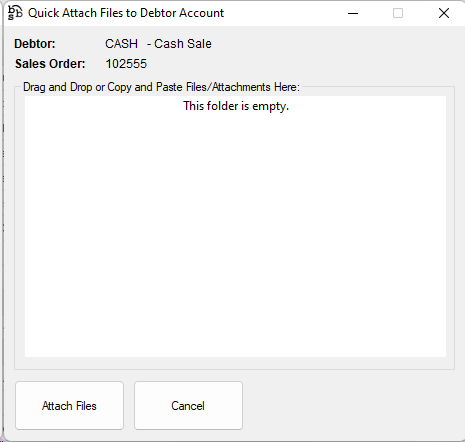
Users can drag and drop files from their desktop or other folders on their PC into the white section of this screen, or copy files from their PC and either use CTRL + V to paste them, or right click in the white section of this screen and select paste.
Users can even drag and drop email messages directly from Outlook into this screen, or drag and drop email attachments directly from Outlook into this screen.
PLEASE NOTE: When dragging and dropping files from your PC into the Quick Add Attachments screen, the default may be to move the files from your PC into BBS (depending on your PC’s settings). Should you want to leave the original file or files in place, hold down the CTRL key while dragging to copy the files into BBS instead of moving them.
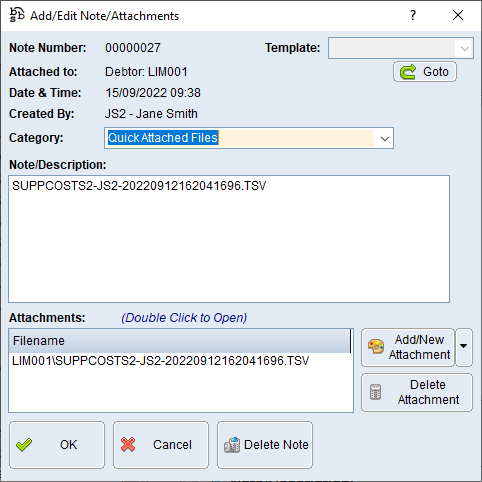
When finished copying or dragging files into this window, users can click Attach Files and the files will be copied into BBS, a New Note will appear with the files attached, and the file names in the description of the note. The note can be amended before clicking save.
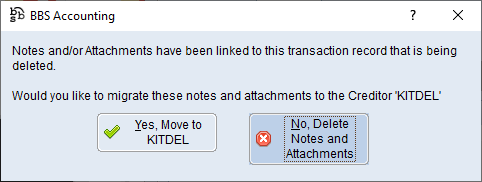
If a user attaches a file while entering a transaction and then cancels/clears that transaction (eg while entering a creditors invoice), the following message will be displayed.